
9 Tools and Tips to Make Financial Document Management Easier
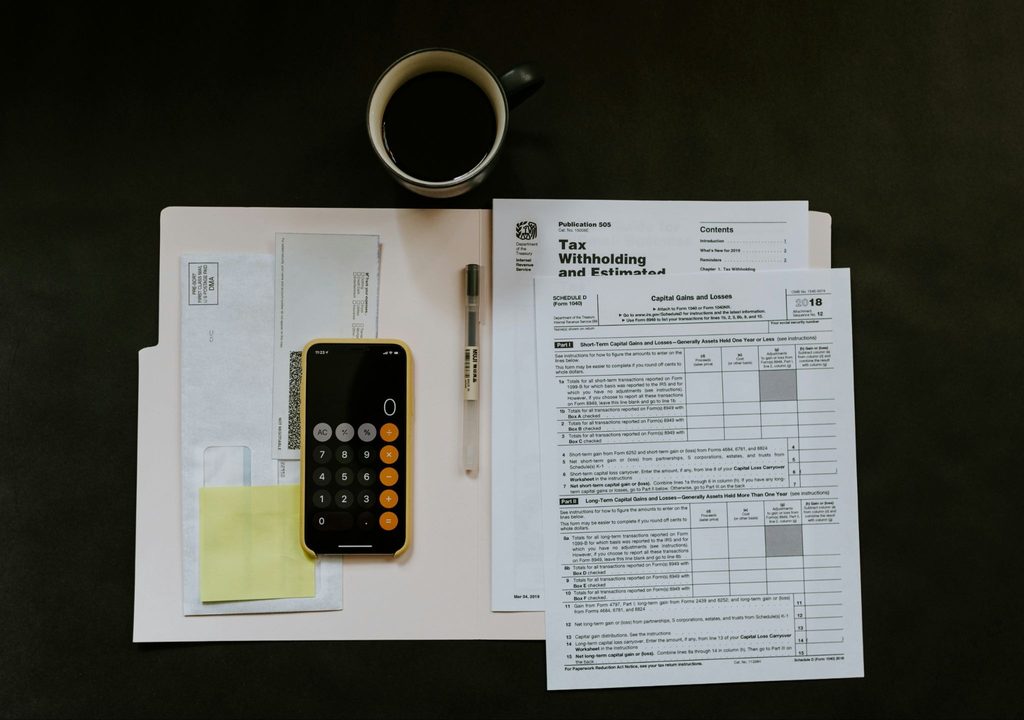
Last spring, a friend of mine needed one pay slip. Just one. His bank wanted it by five o’clock. He tore through a desk drawer, scrolled his email for twenty minutes, then found it folded inside a gym bag. He made the deadline with about four minutes to spare, and he swore he’d never let it happen again.
Sound familiar? Most people live like this. Money papers show up from everywhere: the mailbox, your inbox, a bank app, a pay site, a pile on the kitchen counter. Nobody plans the mess. It just grows, one envelope at a time.
The fix doesn’t need to be fancy. Below are 9 tools and tips that work for home users, solo workers, and small shops. Plenty are free. A few take ten minutes. Start with the easy ones and build from there.
Why Money Papers Pile Up So Fast
Count what lands on you in one year. Bank notes, pay slips, power and phone bills, rent or loan papers, insurance forms, tax forms, and a heap of receipts. For one adult, that can hit dozens of papers. For a small shop, hundreds.
Here’s the catch. Each one arrives in a different shape. Your power bill is a sheet of paper. Your bank note is a PDF. That hardware store receipt is a thin slip that may be blank by next month. With no single rule for all of them, most folks wing it.
What should a good setup do? Three things:
- Make adding a file quick. If it takes ten steps, you’ll quit.
- Make finding a file quick. Under a minute is the goal.
- Keep every file safe. Fire, theft, and dead drives shouldn’t wipe you out.
Keep those 3 in mind. Every tip below ties back to one of them.
1. Scan Papers With Your Phone
Forget the bulky scanner. The camera in your pocket is plenty. Adobe Scan and Microsoft Lens are free, and they turn a photo into a tidy PDF. Apple Notes and Google Drive can scan too; no extra app needed.
Try this flow:
- Scan the bill the day it comes.
- Check the page. Is the text sharp? Are all four edges in view?
- Send the file to your cloud folder right then.
- Shred or recycle the paper, unless a lender or the law wants the original.
Why bother? A scan takes about 20 seconds. A stack of paper takes months to grow and an afternoon to sort. Do the scan while the bill is still in your hand, and the stack never forms.
Now, a word on originals. The IRS accepts digital copies for tax records as long as they’re clear and readable. But deeds and birth records are another story. Scan them for backup, then keep the paper original somewhere safe, like a fireproof box.
2. Keep All Files in One Cloud Spot
Pick one cloud home for your money files. Google Drive, Dropbox, and OneDrive all do fine. Which one you pick matters less than sticking with it.
Here’s what happens without a single home. The bank PDF sits in email. The tax form hides in Downloads. A receipt photo is buried in your camera roll. Finding all three means three separate hunts, and you’ll probably miss one.
A folder plan that works:
- Money (top folder)
- 2026
- Bank
- Bills
- Income
- Taxes
- Receipts
- 2025
- Same set of folders
- 2026
Keep it shallow. Folders inside folders inside folders sound tidy, but they’re a pain in real life. If you can’t say where a file lives without thinking, you’ve got too many layers.
One more perk. A cloud folder lets you share. If your tax pro asks for papers, you send one link. Not forty emails.
3. Turn Bank PDFs Into Rows You Can Sort
Bank PDFs look clean, but they’re stubborn. You can’t sort them. You can’t add up a column. Want to see what you spent at one shop last quarter? Get ready for a calculator and a lot of typing.
A bank statement converter fixes that. You give it the PDF, and it hands back rows and columns, usually as an Excel or CSV file. From there, you can sort, add, and search in a few seconds. One site worth a test is statementtrust.com, which turns bank PDFs into clean sheets.
Where does this come in handy?
- Tax prep: Group all work costs in one pass.
- Loan forms: Give a lender a clean table of your cash flow.
- Budgets: Spot where your money goes each month.
- Small firm books: Load the rows into your money software and skip the typing.
Be careful with any tool like this. Test it with a dummy file before anything real. Read how the site treats privacy. Only upload real data if you trust who runs it, and ask how long they keep your files.
4. Name Each File the Same Way
Open a folder and see “scan0042.pdf.” What is it? A bill? A bank note? You have no clue, and in six months you’ll have even less. A good name tells you what’s inside before you click.
Choose one rule and use it every time. A solid pick:
- Year, month, day (in that order)
- Name of the bank, shop, or firm
- Type of paper
Some samples:
| Bad Name | Good Name |
| scan0042.pdf | 2026-03-14-Chase-Statement.pdf |
| IMG_8831.jpg | 2026-04-02-HomeStore-Receipt.pdf |
| final bill.pdf | 2026-05-01-Power-Bill.pdf |
| doc (3).pdf | 2026-01-20-Employer-PaySlip.pdf |
Why lead with the year? Because your files then line up by date on their own. Want March? Scroll to March. No search box needed.
Use dashes, not spaces or odd marks. Names stay clean when you share files or load them into other tools.
5. Let Money Software Do the Boring Work
Typing numbers by hand is slow. Money software takes that job. QuickBooks, Wave, and Xero link to your bank, pull in each buy, and sort it by type. You just glance at the list and fix whatever it got wrong.
Who gains the most?
- Solo workers who bill clients
- Small shops with daily sales
- Side gig owners who need clean books at tax time
- Anyone who wants a clear view of cash in and cash out
When you shop for a tool, check these:
- Bank link: Is the connection safe?
- Receipt link: Can you attach a photo to each buy?
- Reports: Does a profit and loss report take one click?
- Export: Can you take your data with you if you switch?
Prices and plans shift, so read the current terms before you pay. Most tools offer a free trial. Try two or three, then pick the one that feels easy.
6. Snap Each Receipt Right Away
Here’s a fun fact nobody enjoys: many shops print receipts on thermal paper, and that ink can vanish in a few months. Leave a slip in a hot car or a wallet, and it fades faster. Once it’s blank, you have no proof of a work cost or a return.
The cure is simple. Take a photo the same day. Apps like Expensify and Zoho Expense can pull the date, shop, and total from the image, so you type less.
A habit to build:
- Get the receipt.
- Snap it before you leave the shop, or at the end of the day.
- Let the app tag it by type.
- Toss the slip, unless you need it for a return or a warranty.
If you run a small firm, this habit pays off big in spring. The IRS says you must back up your costs with records, and a clear photo of a receipt is a strong start.
7. Lock Files Down
Your money files can show your bank number, your tax ID, and your home address. A thief would pounce on that, so build a strong lock.
Start with these steps:
- Get a password manager. It makes long, random codes for each site and keeps them for you. All you recall is one master code.
- Turn on 2 step login. Even if a thief steals your password, he can’t get in without the code sent to your phone.
- Avoid public Wi-Fi when you handle money. Use your home net or your phone data.
- Watch for fake emails. A real bank won’t ask for your full password by email. If a message feels odd, open the site yourself and log in there.
- Lock your phone. A PIN, a face scan, or a print scan will do.
Setup takes under an hour. That small effort can spare you a very bad year.
8. Save Copies in 2 Places
Drives die. Phones end up in lakes. Cloud accounts get locked now and then. Keeping just one copy of a key file is a gamble.
Tech pros often lean on the 3-2-1 rule:
- Make 3 copies of your data.
- Store them on 2 types of media.
- Keep 1 copy off-site.
At home, a lighter version works fine:
| Copy | Where | Why |
| Main | Cloud folder | Easy to reach from any device |
| Backup | External drive at home | Safe if the cloud fails |
| Key papers only | Second cloud or a safe | Extra cover for the big files |
Set a monthly calendar reminder to update the drive. It only takes about 10 minutes. Twice a year, open a few files from the backup to test it. A backup you can’t open isn’t a backup.
9. Know When to Toss a Paper
Some people keep every scrap out of fear. Others shred too soon and regret it. A clear rule helps both camps.
For US taxes, the IRS lists these basics:
- Keep records for 3 years from the date you file, in most cases.
- Keep them for 6 years if you leave out more than 25 percent of your gross income.
- Keep them for 7 years if you claim a loss from bad debt or worthless stock.
- Keep them with no end date if you never file a return, or if you file a false one.
- Keep job tax records for at least 4 years.
A plain guide for common papers:
| Paper | Keep It For |
| Tax return and proof | 3 years in most cases (6 or 7 in some) |
| Pay slips | Until they match your year-end tax form |
| Bank notes | 1 to 3 years, or longer if they back up a return |
| Home buy and sale files | As long as you own it, plus 3 years |
| Loan payoff proof | For good |
| Receipts for big buys | As long as you own the item, or for a warranty |
| Insurance papers | For as long as the policy is active |
Rules change from place to place, and they shift over time. Ask the IRS or a tax pro before you shred a thing. If you live outside the US, look up the rule where you live.
The 9 Tools and Tips at a Glance
| # | Tool or Tip | Helps With | Cost |
| 1 | Phone scan app | Paper bills | Free |
| 2 | One cloud folder | A single safe home | Free to low |
| 3 | PDF to sheet tool | Bank notes | Varies |
| 4 | File name rule | Fast search | Free |
| 5 | Money software | Auto tags and reports | Free to paid |
| 6 | Receipt app | Proof of buys | Free to paid |
| 7 | Password manager | Locks | Free to low |
| 8 | Backup plan | Safe copies | Low |
| 9 | Keep and toss guide | Less clutter | Free |
A Made Up Example of the Gain
This one is made up. Sam isn’t a real person. But the story shows how small steps add up.
Sam runs a repair shop. For years, his bills and receipts all ended up in one shoebox. Come April, he’d lose a weekend to sorting, and some work costs still slipped by because the slip had vanished. When his tax pro asked for bank data, Sam printed old notes and mailed them. Yes, mailed them.
Then he changed 4 things:
- He scanned each bill with his phone.
- He moved every file into one cloud folder.
- He named files with the date first.
- He ran his bank PDFs through a converter before sending them off.
The next tax season took one evening. His tax pro got clean rows and clear receipts. Sam even found work costs he’d missed in past years.
Tip: replace Sam with a true story from you, a client, or a friend. Real details build trust.
Mistakes That Trip People Up
Good tools won’t save you from a few classic slips. Watch for these:
- Doing too much at once. Try all 9 tips in a day and you’ll quit by day 3. Go slow.
- Using too many apps. More apps means more places to look.
- Skipping the backup. Most people learn this one after a file is gone.
- Using weak codes. A short or reused code is a gift to a thief.
- Tossing papers too soon. Check the keep rules first.
- Trusting a tool blind. Test every new tool with a dummy file.
Your 30 Day Plan
Here’s a plan split into small bites:
| Week | Task |
| Week 1 | Pick a scan app and one cloud folder. Scan new papers each day. |
| Week 2 | Set a file name rule. Rename your top 20 files. |
| Week 3 | Set up a password manager and 2-step login. Test a converter with a dummy file. |
| Week 4 | Set up a backup drive. Use the keep and toss guide to clear old papers. |
Stick with this for a month and you’ll have a system that runs on its own. Money software and a receipt app can come later, when you feel ready.
Questions People Ask
Is it safe to keep money files in the cloud?
It can be, with a strong code and 2-step login. Pick a known brand and read its privacy terms.
Can I toss a paper after I scan it?
Often, yes. The IRS takes clear digital copies for tax records. Keep deeds, birth records, and other key papers on paper.
How long does setup take?
The first 3 steps fit in one afternoon. The full plan takes about a month at an easy pace.
Do I need to pay for any of this?
Not at first. A scan app, a cloud folder, and a name rule cost nothing. Pay only when a tool saves you more time than it costs.
Where to Begin
Don’t start all 9 at once. Pick 3: a scan app, one cloud folder, and a name rule. They give the biggest gain for the least work. After that, add one new step each week.
In a month, any paper will take a few seconds to find. Tax time will feel calm, not scary. And the next time a bank asks for a pay slip at five o’clock, it’ll be in your hand before the call ends.